Short answer
Review names and destination paths before moving files to Microsoft 365. DNM suggests structured names for you to review and save; it does not rename every arriving file automatically or guarantee that existing links will keep working.
A sync error and a broken link are different problems
A rejected filename can prevent a file from uploading. A link can fail because the file moved, access changed or the link points to an old path. Those problems can appear during the same migration, but renaming is not a universal fix for both.
Start with the actual error. If a file will not sync, check the name, full path and service restrictions. If a shared link fails, also check whether the recipient has access and whether the link still refers to the intended file.
What should you check in the name?
Microsoft's OneDrive and SharePoint restrictions cover reserved characters and names, leading or trailing spaces, and other limitations. Several restrictions also apply on Windows. Do not assume that a name is portable simply because one application accepted it.
Emoji and other Unicode characters are not universally forbidden. For a team convention, a smaller character set can make names easier to type and reuse, but that is a practical choice rather than a claim that every other character breaks a URL.
Check the full path
A readable filename can still sit inside a destination path that is too long. Include the library folders and, for local use, the sync root. Microsoft 365's service limit and a Windows application's local limit are different; see the 260 vs 400 character guide before setting a filename budget.
Review names before distributing new links
If you are already planning a cleanup, doing it before migration can reduce the number of later changes to track. Keep a backup and record the old and new names where references matter. After the test migration, check the links people actually use. Some link types can survive renames; path-based references may need updating.
The Cost of File Chaos calculator is a separate search-time planning tool. It does not measure broken links, sync failures or migration costs.
A practical naming example
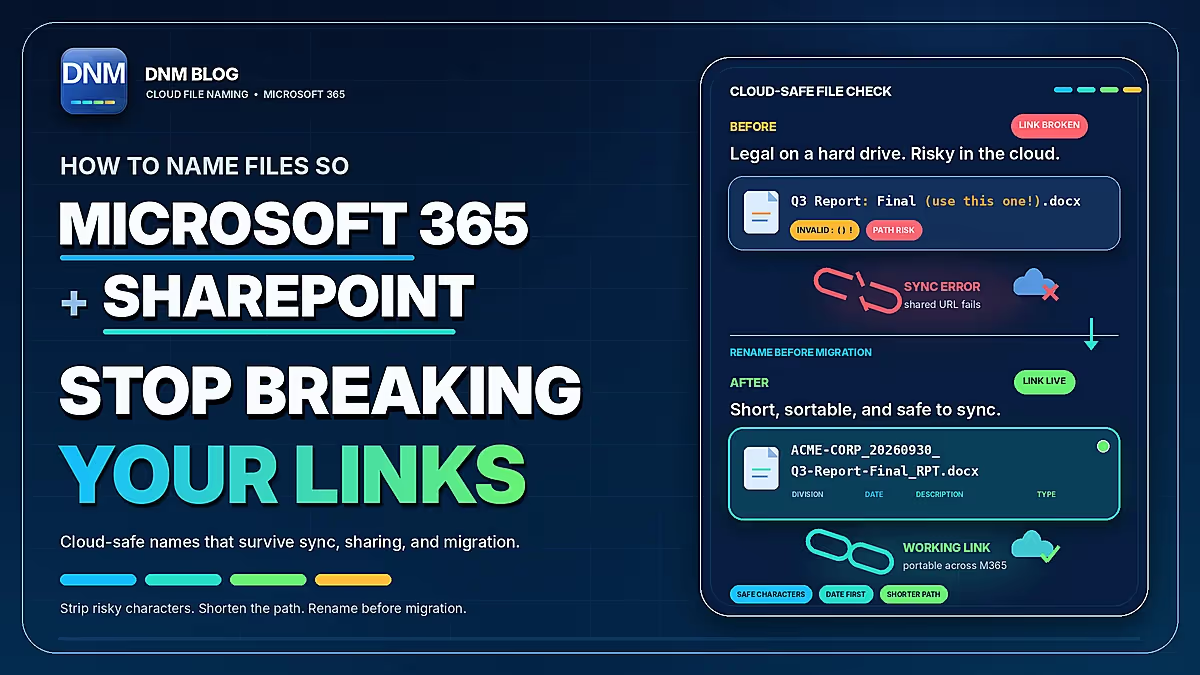
Consider Q3 Report - Final (use this one!).docx. The wording is unclear, but that name alone does not prove a Microsoft 365 restriction has been violated. A reviewed General-standard name could be:
ACME-CORP_20260930_Q3-Report-Final_RPT.docx
This identifies the client, date and report without changing the document format. The date and description are illustrative inputs that must match the document. The word Final is only a label; it is not an approval record.
In a name beginning with Division, the YYYYMMDD date sorts chronologically within matching Division prefixes when sorted by name. Other standards place fields differently. Review the DNM naming standard and try your own inputs in the generator.
How DNM helps
Bring files into DNM, select a standard and review the suggested names. DNM can flag common Windows and Microsoft 365 naming issues before you save. Check that the client reference, document date, description and destination are correct; the app cannot supply missing business context reliably on your behalf.
DNM processes documents locally for naming and supported OCR. It is not a migration tool, a Microsoft-certified validator or a system-wide naming policy. Teams need to configure their own PCs and agree on the same field meanings.
Common questions
Will a rename break an existing SharePoint link?
It depends on the link type and how the file is referenced. Test important sharing links, path-based links and embedded references in your own environment.
Does a structured name guarantee that a file will sync?
No. The full destination path, file type, permissions, service settings and local applications also matter.
Does DNM rename incoming files without review?
No. Import or Watch Folder brings files into the workflow. You review suggested names and save the changes you choose.