From a messy folder to one clean standard.
DNM walks every file through the same steps, all on your Windows PC. Drag a folder in, pick your naming standard, and watch every name line up. Here is exactly what happens between the drop and the save.
See DNM before you download.
Start with the workspace where original and proposed names stay visible together. Then inspect the naming standard and final save review at full size.
DNM with example files.

Review proposed names before saving
Compare original filenames with DNM’s proposed names in one workspace.
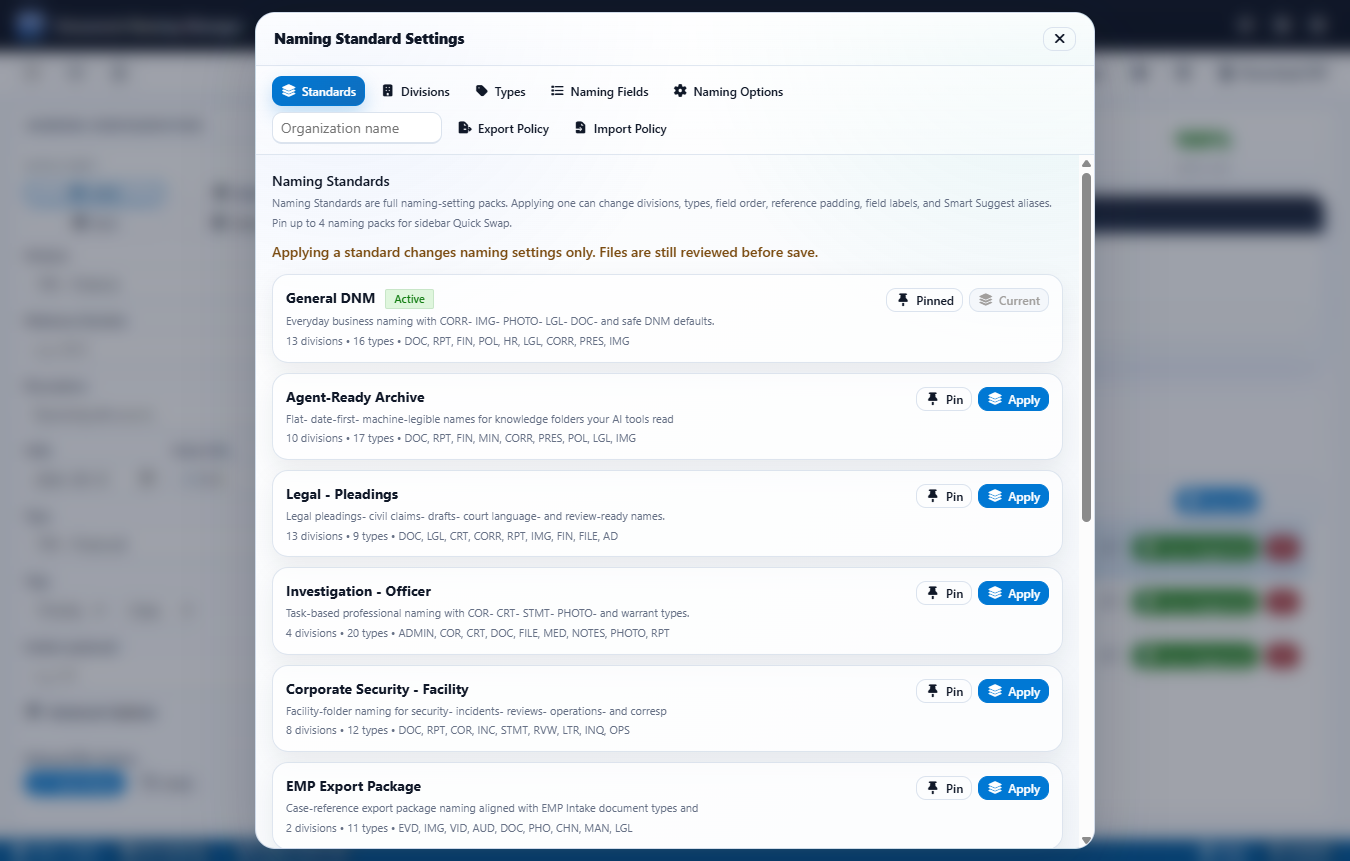
Choose your naming standard
Choose a saved standard, then review its divisions, document types, and naming fields.
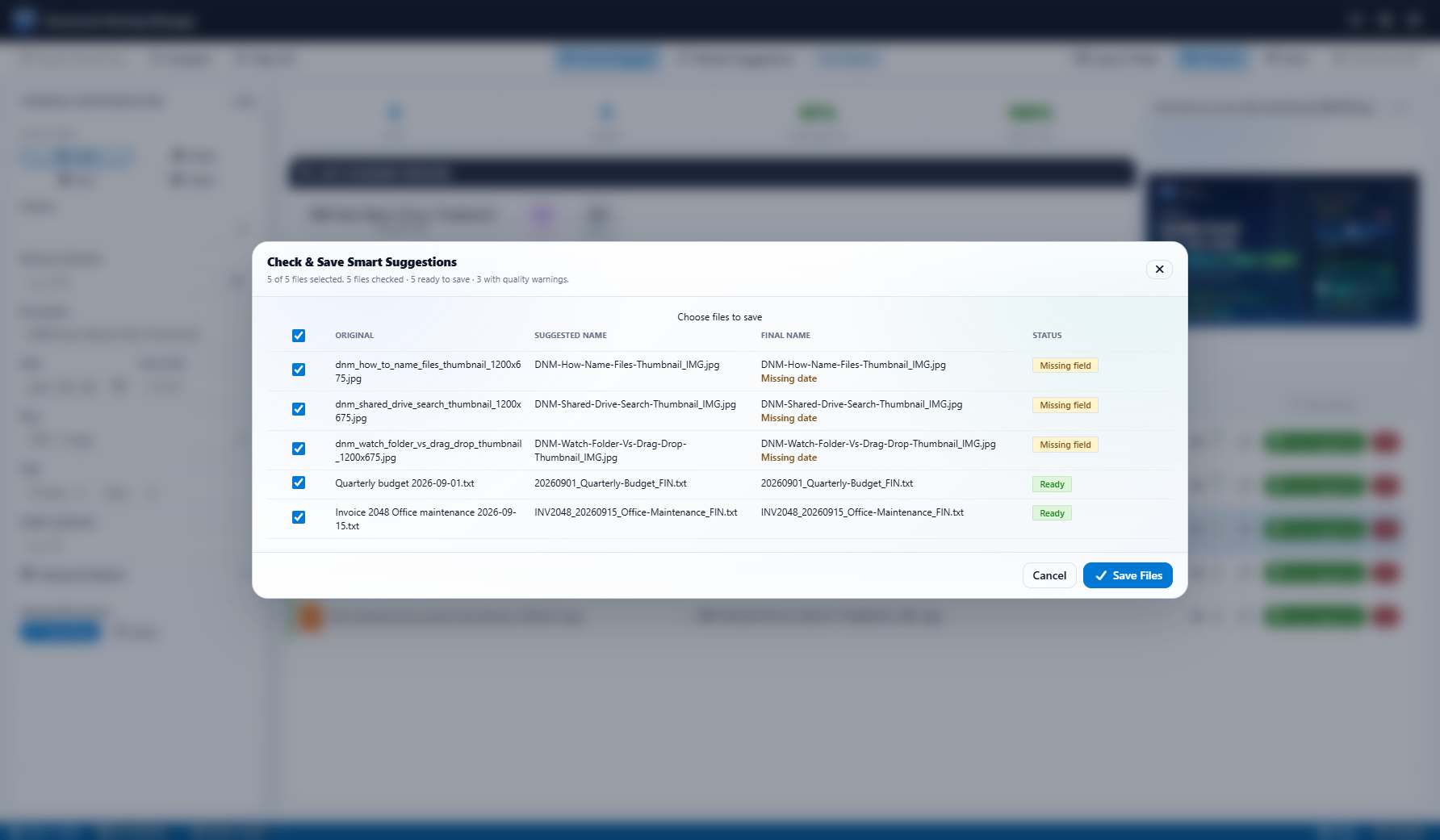
Check names and warnings before saving
Review each final name before saving. Here, all five files can be saved; three images have missing-date warnings.
Use your naming standard throughout the workflow.
Read supported file content locally, recognize your division codes, and review proposed names before saving.
Reads scanned PDFs and images, on your PC
When enabled, local Tesseract OCR uses text from supported scanned PDFs and images as naming hints. Choose an OCR effort level and review the suggested name before saving. No document is uploaded for OCR.
Flags AI-generation metadata
Checks known metadata associated with AI generation. A warning is a cue to review the file, not proof of origin; no warning does not prove it was human-made. Checks run on your PC without uploading files.
Your division codes, your vocabulary
Define your own division codes and labels (a site, a client, a matter, a building) in the Divisions editor. Smart Suggest then detects them in incoming filenames, so the names match how your team already talks.
Dock it beside your work
Docked Mode shrinks DNM to a focused right-side intake panel: drop zone, file count, original and proposed names, save selected, save all. It shares the same queue and save safety as the full window, so you can name files as they come in without the app taking over the screen.
How DNM names a file, step by step
From a messy folder to one clean standard. Every step runs locally on your Windows PC.
Drop in your files
Point DNM at a messy folder. Nothing is uploaded.
DNM gathers naming hints
From filenames, available metadata and supported content, including optional local OCR.
Smart Suggest previews a name
Built from our standards, so the result is predictable.
Conformance checks flag anything off
Path length, Microsoft 365 safety, and missing fields.
Confirm, and DNM renames
In place or as a clean copy, sorted into the right folder.
Every change is logged
Undo eligible recent saves with configurable Recovery Vault retention, subject to storage limits and matching paths and hashes.
Everything DNM does, in one place
The full feature set, grouped by what it does for your files.
Use one naming standard
- Applies your saved naming standardBuild consistent proposed names, then review them before saving.
- 12 built-in industry standardsLegal, Strata, Accounting, Investigation, and eight more. Use a built-in standard or define your own.
- Deterministic name suggestionsSame inputs, same name, every time. No AI guessing.
- Custom codes, divisions, and saved presetsCustomize type codes, divisions, field order, and patterns. Reuse saved presets and share naming policies as files with an active trial or license.
Read and detect
- Local OCR reads scanned PDFs and imagesTesseract, three levels, entirely on your PC.
- Flags AI-generation and GPS metadataFlags known AI-generation metadata and GPS metadata for review. A flag is not proof of a file's origin.
- Uses photo dates and titlesUses capture dates and available photo titles or captions for naming suggestions. Photo metadata is read, not rewritten. GPS data is flagged, not added to filenames.
Name files in batches
- Review and rename a batchPrepare proposed names for a folder of files, then confirm the changes.
- Watch a folder and queue new files as they arriveSet it once; new files land ready to be approved
- Rename in place or write a clean copyThen sort the named files into the right folders.
Safe and local
- Reversible bulk rename with a Recovery VaultRecent saves are logged locally. Recovery Vault retention is configurable up to seven days; recovery depends on your settings, storage limits and matching paths and hashes.
- Microsoft 365 and SharePoint name safetyDNM ships the path-length and character checks.
- Naming and OCR run locallyNaming runs locally without Microsoft Office installed. Internet is needed to start a trial, activate a license, verify licensing, and check for updates.
How does DNM compare to other renamers?
Compare saved naming rules, review workflows and other capabilities, with tool-by-tool guides.
Common questions
Does DNM need the cloud?
Does DNM use AI to name files?
Does it rename files automatically, or do I confirm each one?
Can I undo a rename?
Which Windows versions are supported?
Is there a free trial?
Keep exploring
Name your files the way you always meant to.
Start the free 14-day trial. No card, no upload, no cloud account. DNM installs on Windows and runs entirely on your machine.
Start free trialPrefer to compare plans first? See pricing.